VectorMotion - Design/Animate
- 3.2
- Rating
- 100.00K
- Installs
- Free
- Price

 Analysis by App-foxy
I first approached VectorMotion as a quick design tool rather than a full studio replacement. That expectation turned out to be important. ReMotion Apps has built an app for people who want to work with vector artwork and animation in the same place, and its appeal is clearest when a project needs both clean shapes and movement. I can imagine using it for a short animated logo, a social post, a simple explainer graphic, or a visual draft that needs to be shown to someone else before it becomes a larger project.
It is a free Art & Design app, rated for Everyone, and it runs on Android devices using version 6.0 or later. The current release is 1.2.7, while the app itself first appeared on October 4, 2022. Those details make it approachable for older phones and tablets, although the practical experience will still depend on the screen size and how complicated the artwork becomes.
How VectorMotion fits into a shared household device
The most useful way to judge this app is not as a mysterious all-purpose creative suite, but as a flexible workspace that can be passed between people. On a shared tablet, one person might sketch a birthday-card design, another could adjust the colors, and a child might experiment with moving shapes. That kind of handoff is where the app feels more interesting than a basic drawing program: the same visual idea can be refined, animated, and reviewed without immediately moving to another tool.
You May Also Like

 Blood Strike: 2.5 Anniversary
Blood Strike’s Loadouts Turn Every Drop Into a Tactical Gamble
A close look at Blood Strike’s custom loadouts: how fast access to signature weapons reshapes its battle royale rhythm, rewards preparation, and narrows the gap between fights.

 Pandora - Music & Podcasts
Pandora’s Music Is Easy to Start, but Harder to Recover
Pandora’s strength is its low-effort path from a seed to a station. Its weak spot is how much confidence it asks you to place in connection, setup, and quiet recovery.

 8 Ball Pool
8 Ball Pool Is Built on Rivalries, Rematches, and Routine
A close look at the rivalries, rematches, shared routines, and unanswered safety questions that turn a quick pool match into a persistent mobile community.

 Samsung Music
Samsung Music’s Quiet Strength Is Playing What You Already Own
Its reach comes less from spectacle than from dependable access to a personal library. That simplicity is both the app’s strongest retention engine and its ceiling.

 AccuWeather: Weather Radar
AccuWeather Review: A Quick, Clear Forecast for Everyday Decisions
For everyday plans, the best forecast is the one you can understand quickly. AccuWeather makes rain timing, radar, and local conditions easy to act on, with a few trade-offs.

 Hill Climb Racing
Why Hill Climb Racing Still Turns Crashes Into One More Run
A tiny car, a bumpy hill and one more upgrade: Hill Climb Racing keeps resurfacing because its simple chaos makes every near-miss feel personal.
More From Our News Desk



I would still treat a shared device as a communal workspace rather than assuming that every project has a separate private area. Before handing the tablet to somebody else, I would save the current work clearly, close anything unrelated, and make sure the next person knows which file or canvas is active. This is simple coordination, but it prevents the most common household problem with creative apps: someone edits the wrong draft and nobody remembers which version was the intended one.
For a family project, a useful routine is to give each piece of work a descriptive name based on its purpose rather than the person using it. “Party invite animation” is safer than “my design,” especially when several people are taking turns. I also prefer finishing one small task before switching users. Vector-based work can look deceptively simple, yet a tiny change to a shape, layer, or motion element may affect the whole composition.
The app’s combined focus on design and animation makes it suitable for short collaborative sessions. A parent could prepare a clean background, a teenager could add moving text, and a younger user could test a few visual ideas. I would not expect it to replace a dedicated professional workflow for every member of the household, but it can serve as a common creative table where different skill levels contribute to the same visual result.
What I would prepare before passing the device around
My first step would be to create a small test project instead of beginning with an important illustration. I would draw a few basic shapes, try a simple animation, and confirm that the controls feel comfortable on the particular phone or tablet. This matters because vector editing is much easier when there is room to select points and objects accurately. A compact phone can work for quick adjustments, but a larger display is more comfortable for arranging several elements.
I would also keep the first shared project deliberately modest. A short animated title or a moving icon is a better household experiment than a detailed scene with many individual parts. It gives everyone a chance to understand the editing flow without turning coordination into a technical lesson. Once the group knows how the project behaves, more ambitious work becomes less frustrating.
One practical tip is to separate creative decisions from cleanup. During the first pass, I would let everyone suggest colors, shapes, and movement. In the second pass, one person should handle alignment and consistency. That division works particularly well with vector artwork because clean spacing and matching proportions can take more patience than the initial idea. It also avoids a situation where several people are changing the same visual detail at once.
Another useful habit is to preview an animation at its intended viewing size before judging it. A motion effect that looks subtle while editing may be perfectly readable on a phone, while a crowded design can become confusing when reduced. VectorMotion is most convincing when the design remains clear first and animated second. Movement should support the message, not hide weak composition.
Boundaries matter more than extra tools on a shared device
Because this is an art and animation app rather than a household management tool, I would not assume that it provides separate profiles, family controls, or automatic boundaries between users. The safest approach is to rely on the device’s own user arrangements where available and on clear household rules. Each person should know which projects are theirs to edit and which ones are only for viewing.
This is especially important when a child uses the same device as an adult. The Everyone age rating makes the app broadly approachable, but an age label does not explain how a particular child will handle creative work. A younger user may need help understanding that deleting or changing an element can alter the entire composition. I would begin with a supervised session, show how to undo an action, and keep important drafts backed up through the device’s normal storage process when that is part of the household routine.
I would also avoid treating the app as a place to store sensitive personal material simply because it is convenient. A family illustration, school project, or harmless animation is a natural fit. Private documents, confidential client artwork, or anything that should remain inaccessible to other device users deserves a more controlled environment. This is not a criticism of the drawing experience; it is a sensible boundary for any creative app used on a shared screen.
For adults coordinating work with children, the best arrangement is often a “copy for experimenting” and an “original for keeping.” Let the younger user explore the duplicate while the main version stays untouched. That small distinction protects the finished design and gives the child freedom to learn without the pressure of preserving every detail.
Where the design and animation combination helps
The strongest idea behind VectorMotion is the connection between vector construction and motion. In a conventional drawing app, I might create artwork and then export it to another application for animation. That split adds friction: formats need to survive the transfer, proportions may change, and the second app may organize the project differently. Keeping the design and movement in one workspace can make early experimentation faster.
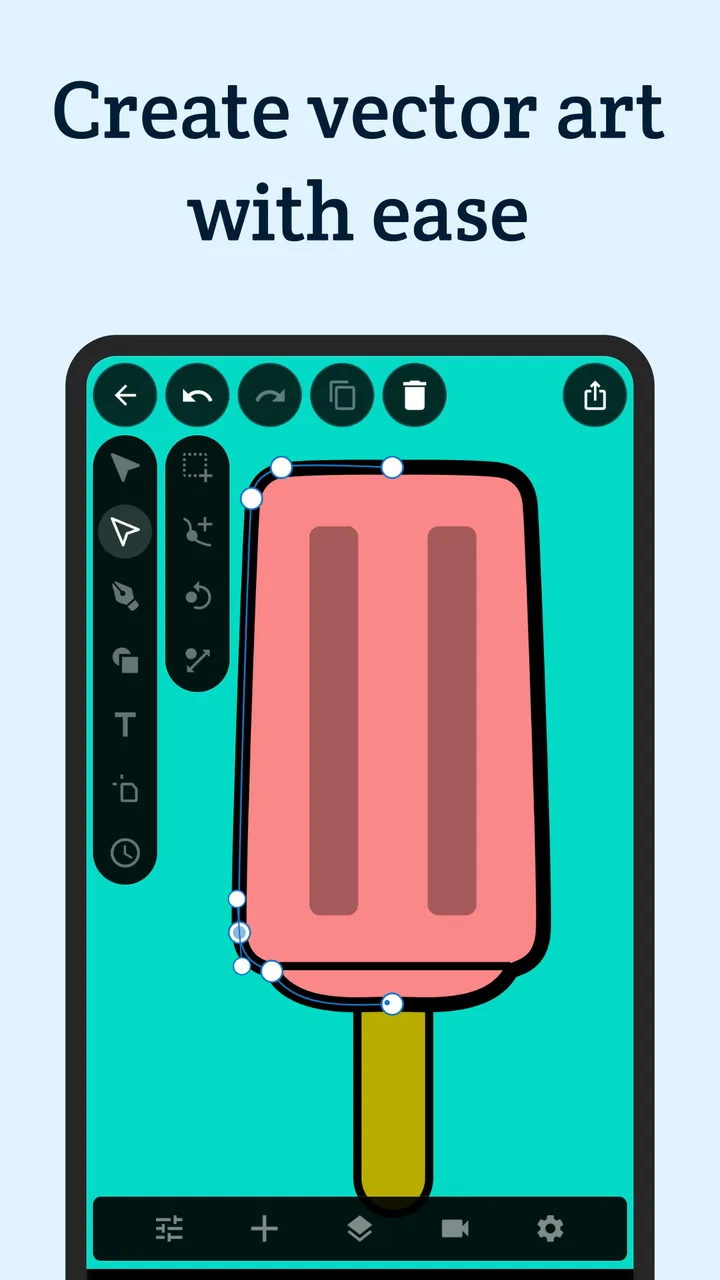
I find this especially useful for projects built from simple geometry. A logo made from circles and lines, a loading indicator, a title card, or a set of animated symbols can benefit from vector editing because the shapes stay crisp while I refine their arrangement. The workflow is less attractive when the goal is natural brush texture, painterly shading, or a highly detailed illustration. For those tasks, a raster painting app is usually the more natural choice.
A non-obvious advantage is that animation can reveal design problems earlier. When a shape moves, uneven spacing and awkward alignment become more noticeable than they are in a still image. I would use a short motion test as a design check, not just as decoration. If the movement feels unbalanced, the underlying composition may need attention before adding more effects.
I would also use the app for storyboarding. Instead of drawing a long finished sequence, I could make a handful of simple vector frames to test the order of an idea. This is a good compromise for a household project because different people can review the visual rhythm without spending hours polishing artwork that may later be discarded.
Everyday use: preparing a small animated invitation
Imagine that I am preparing a digital invitation for a family gathering. I could begin with a clean background and a few vector shapes, then arrange the event title so it remains readable. A second person could suggest a color change, while a child experiments with making a star or balloon appear on screen. The project stays manageable because each contribution has a clear role.
After the creative pass, I would review the animation with the sound off and at a normal phone-viewing distance. That check answers two practical questions: does the message remain understandable, and does the movement feel intentional? If the answer to either question is no, I would simplify rather than keep adding elements. In shared projects, simplicity is often what allows everyone’s work to survive the final edit.
The trade-off is that a single app cannot remove the need for planning. VectorMotion may bring design and animation together, but it does not turn an unorganized project into a finished one. File naming, turn-taking, and deciding who has final approval still matter. For a family invitation, that is manageable. For a larger team with formal review stages, a dedicated design system and clearer collaboration tools may be better.
Coordination between beginners and experienced users
Different skill levels can coexist here if the tasks are divided thoughtfully. A beginner can choose colors, arrange basic shapes, or review whether the message is clear. Someone more experienced can handle precise positioning, timing, and the final cleanup. I would avoid giving a new user an unfinished complex scene and asking them to “just make it better”; that usually creates uncertainty and accidental changes.
A helpful method is to agree on a visual rule before editing. For example, the group might decide to use only a few colors, keep text large, and animate one main element. This gives beginners room to contribute while protecting the overall style. It also makes disagreements easier to resolve because the group can return to the shared rule instead of arguing over every individual preference.
When two people want to work at once, I would use a short review cycle: one person edits, the other watches and comments, then they switch. That may sound slower than passing the device back and forth randomly, but it reduces duplicated effort. It is particularly helpful when a project contains several similar shapes and the editor needs to remember which element is selected.
For schoolwork, I would encourage the student to keep a simple record of the creative decisions: why a color was chosen, what the animation is meant to communicate, and which parts were changed after review. The app can support the visual work, but the explanation is what turns a flashy result into a thoughtful project.
Age, trust, and sensible supervision
The Everyone rating makes VectorMotion a reasonable candidate for a mixed-age household, but I would still match access to the child’s confidence with editing tools. A child who enjoys drawing may understand the basics quickly, while another may need close guidance with selection and undo actions. The rating is a starting point, not a substitute for observing how the app is used.
Trust also includes respecting other people’s work. I would teach children not to open and change another person’s project without asking, even when the device is shared. That rule is more valuable than any technical setting because it applies to school assignments, family artwork, and an adult’s professional draft alike.
For younger users, I would keep sessions focused and save a copy before experimentation. The goal should be learning how shapes, color, and movement communicate an idea, not producing a perfect result every time. If the child becomes frustrated by precise editing on a small screen, a larger device or a simpler drawing application may offer a better experience.
Older children and teenagers may appreciate the app as a bridge between static graphic design and animation. It gives them a way to see how a visual identity changes when it moves. I would encourage them to start with timing and clarity rather than chasing complicated effects. A restrained animation often looks more deliberate and is easier for someone else in the household to review.
How it compares with familiar alternatives
Compared with a standard mobile drawing app, VectorMotion is more appealing when the final idea needs movement and geometric clarity. A drawing-focused alternative may feel more natural for freehand sketches, textured brushes, and quick painting. If my project were a hand-drawn character study, I would probably choose the brush-based tool. If it were a clean icon that needed a short animated entrance, VectorMotion would make more sense.
Compared with a desktop vector editor, this app is likely to be more convenient for casual, mobile-first work and shared household sessions. A desktop environment usually offers more room for precision and may suit complex professional files better. I would choose the larger, more specialized setup for detailed branding work, extensive asset libraries, or a project that needs a strict production pipeline.
Compared with a dedicated animation application, the advantage here is the direct relationship between constructing vector shapes and animating them. A specialized animation tool may be preferable for long sequences, advanced timing, or a workflow centered on many frames. VectorMotion is better suited to short visual pieces where the design itself remains the main focus.
That middle position is both its strength and its limitation. It avoids the inconvenience of moving a simple project between several apps, but it may not satisfy users who need the depth of a professional desktop suite or the expressive freedom of a painting program. I would choose it for focused visual experiments, not because it replaces every creative tool.
What the current release and adoption suggest
ReMotion Apps is the developer behind the app, which has reached over one hundred thousand installs and holds an average rating of 3.2 from around thirteen hundred ratings, alongside more than one hundred written reviews. I read that combination as a sign of a useful but not universally smooth experience. There is enough interest to make it worth trying, while the middling average suggests that some users may encounter friction depending on their device, expectations, or preferred workflow.
I would therefore install it with a small test project first rather than committing an important piece of work immediately. Check how comfortable the controls feel, how the app behaves with several objects, and whether the animation process matches the kind of output you have in mind. A short trial tells me more than the store summary, which presents the app as a single tool for design and animation without explaining where its practical boundaries appear.
Since it is free, the barrier to testing is low. That does not mean the app is automatically the right choice for everyone. Free access is most valuable when I use the opportunity to compare the workflow honestly with the tools already on my device. If I only need a static sketch, a simpler drawing app may be quicker. If I need professional asset management, I would look elsewhere.
My household verdict
I see VectorMotion as a promising shared creative workspace for households that want to make simple vector designs and add motion without immediately moving to a desktop. Its best use cases are short animated graphics, invitations, icons, title cards, storyboards, and educational projects where people can take turns shaping one visual idea.
I would recommend it to a friend who enjoys experimenting, wants a free starting point, and is comfortable learning through small projects. I would also recommend setting boundaries from the beginning: use clear project names, protect originals, decide who has final editing responsibility, and supervise younger users until the controls feel familiar.
I would skip it when the priority is natural painting, highly detailed illustration, long-form animation, or formal team collaboration. In those situations, a specialized alternative will probably save time and provide better control. The app’s value comes from its focused combination, not from being a universal answer to every design problem.
My final impression is positive but measured. The idea of keeping vector design and animation together is genuinely useful, especially for a family or small group passing one device between them. The experience works best when the project stays clear, the number of moving parts is controlled, and everyone respects the boundary between experimenting and editing the finished work. For approachable animated vector projects, VectorMotion is worth a careful trial rather than an automatic commitment.
FAQs for VectorMotion - Design/Animate
01What is VectorMotion - Design/Animate used for?
VectorMotion - Design/Animate is a mobile design and animation app for creating motion graphics from vector-based artwork. It is intended for users who want to animate logos, illustrations, icons, typography, and other graphic elements directly on a mobile device. The app provides a more focused workflow than a full desktop editor, making it useful for quick projects, social media content, presentations, and animated visual experiments.
02Is VectorMotion - Design/Animate suitable for beginners?
The app can be useful for beginners, especially those who already understand basic concepts such as layers, keyframes, timelines, and vector shapes. However, new users may need some time to become comfortable with animation controls and the overall interface. Starting with a simple project is recommended before attempting complex compositions. Users familiar with graphic design or video-editing applications will generally find the learning process easier.
03Can I import my own designs into VectorMotion - Design/Animate?
VectorMotion - Design/Animate is designed around working with graphic assets, so importing existing artwork can be an important part of the experience. Compatibility may depend on the file format, device, and application version, meaning not every design file will behave exactly as it does in desktop software. Before downloading, users who rely on professional assets should check the current store description for supported import formats and limitations.
04What can I export from VectorMotion - Design/Animate?
The app is intended to turn animated designs into shareable visual content, but available export options can vary according to the operating system, app version, project settings, and possibly the user’s subscription level. Export quality, resolution, frame rate, transparency, and supported formats are especially important for professional work. Users should review the latest in-app export menu and store information if they need a specific format for social media, presentations, or further editing.
05Is VectorMotion - Design/Animate free to use?
The download and basic access conditions may differ between Android and iOS, and some features can be restricted by in-app purchases, subscriptions, or premium tools. Before installing, check the application’s store listing carefully for pricing, trial terms, advertising, export restrictions, and available features in the free version. This is particularly important if you need advanced animation controls, high-resolution output, or unrestricted access for regular professional projects.
Pros
- Intuitive timeline makes keyframe animation easy to manage.
- Supports precise vector editing for clean
- scalable designs.
- Useful motion presets help speed up routine animation work.
- Projects can be refined with detailed layer and object controls.
- Suitable for creating social media graphics
- logos
- and short clips.
Cons
- Advanced tools may take time for beginners to understand.
- Large projects can become difficult to organize without careful layering.
- Some export options may require a paid plan or additional settings.
- Animation previews can slow down on older phones and tablets.
- The mobile interface feels cramped when editing complex compositions.

VectorMotion - Design/Animate
Gallery